
National University of Computer Studies
MES မှ တဆင့် Master & Ph.D Resume သင်တန်းအပ်နှံခြင်း လမ်းညွှန်
ဘွဲ့လွန် (Master/Ph.D) သုတေသနပြုလုပ်နေဆဲ ကျောင်းသား/သူများအတွက်သာ
အဆင့် ၁ – MES အကောင့်ဖွင့်ခြင်း
MES ပေါ်တွင် ကျောင်းသား/သူအဖြစ် အကောင့်အသစ်ဖွင့်၍ ကိုယ်ရေးအချက်အလက်များဖြည့်သွင်းပြီး NUCS ၏ Master/Ph.D သင်တန်းကို ရွေးချယ်တင်သွင်းခြင်း။
အဆင့် ၂ – ဘွဲ့လွန်ကျောင်းသားအဖြစ် စာရင်းသွင်းခြင်း
MES ID ဖြင့် ဝင်ရောက်ပြီး လိုအပ်သော အထောက်အထားများ၊ Seminar/Paper ဖိုင်များကို တင်သွင်း၍ တက္ကသိုလ်ဘက်သို့ Submit ပြုလုပ်ခြင်း။
၁။ MES အကောင့်ဖွင့်ခြင်း
MES သို့ ဝင်ရောက်ခြင်း
MES သို့ ဝင်ရောက်ရန် ဤလင့် ကိုနှိပ်ပါ။ “MES ကျောင်းသား/သူအဖြစ် စာရင်းသွင်းပါ။” ကို ဝင်ရောက်ပါ။
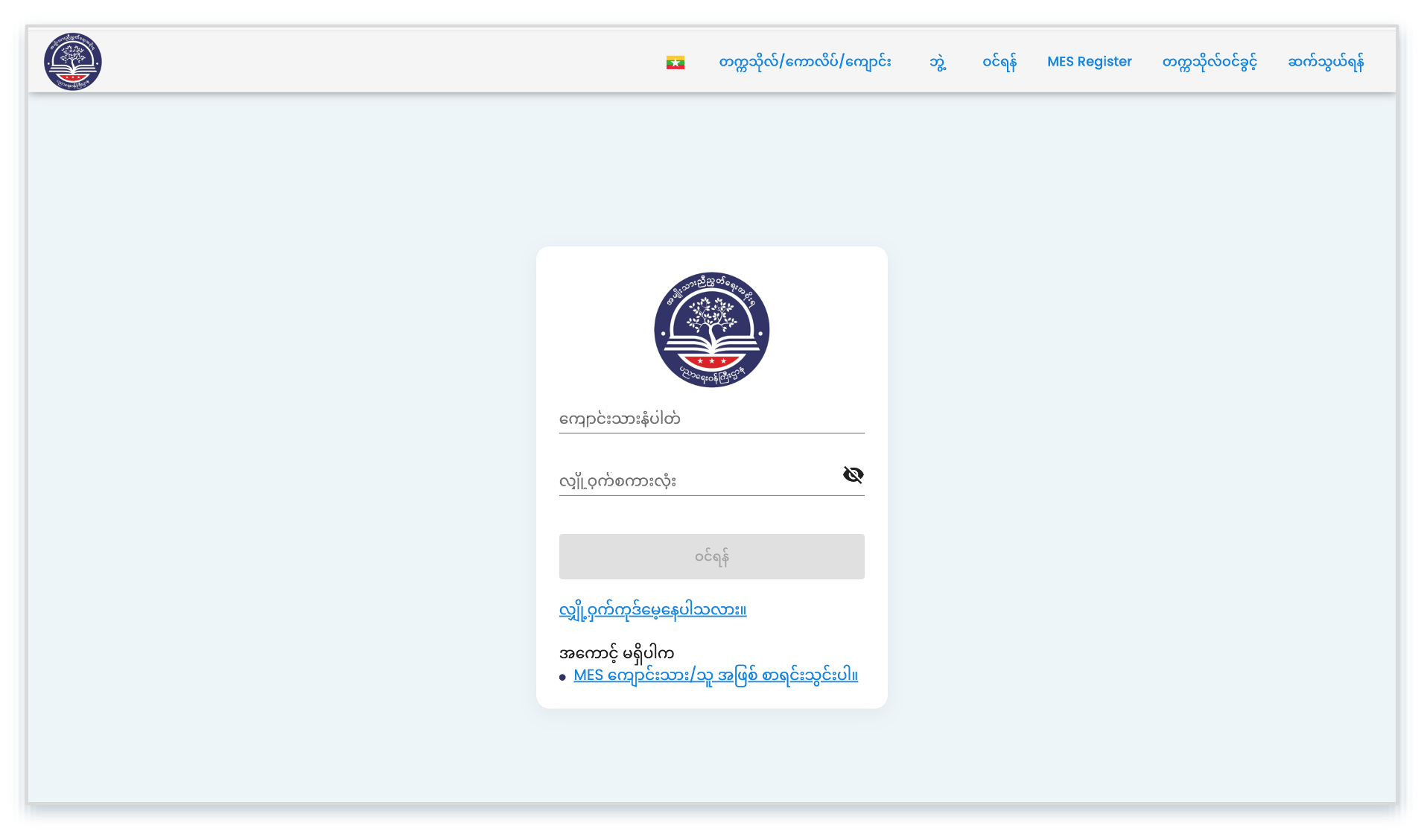
ကိုယ်ရေးအချက်အလက်များဖြည့်ခြင်း
မိမိ၏ကိုယ်ရေးအချက်အလက်များကို ပြည့်စုံမှန်ကန်စွာ ဖြည့်သွင်းပါ။ ကျောင်းဝင်ခွင့်မှတ်ပုံ တင်အမှတ်တွင် မမှတ်မိပါက “-” သာ ဖြည့်ပါ။
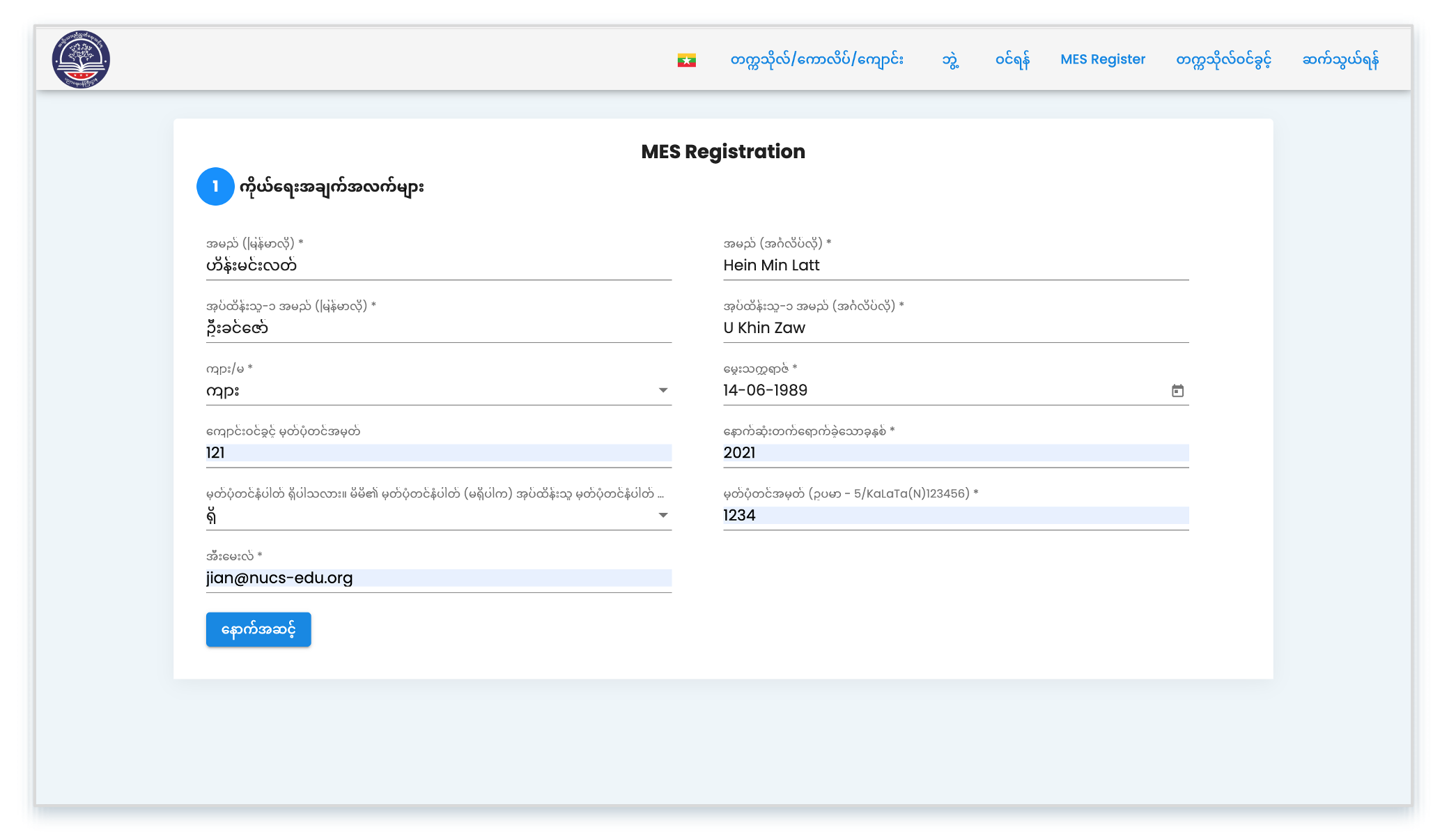
အခြားအချက်အလက်များဖြည့်ခြင်း
အခြားအချက်အလက်များကို ဖြည့်ပါ။
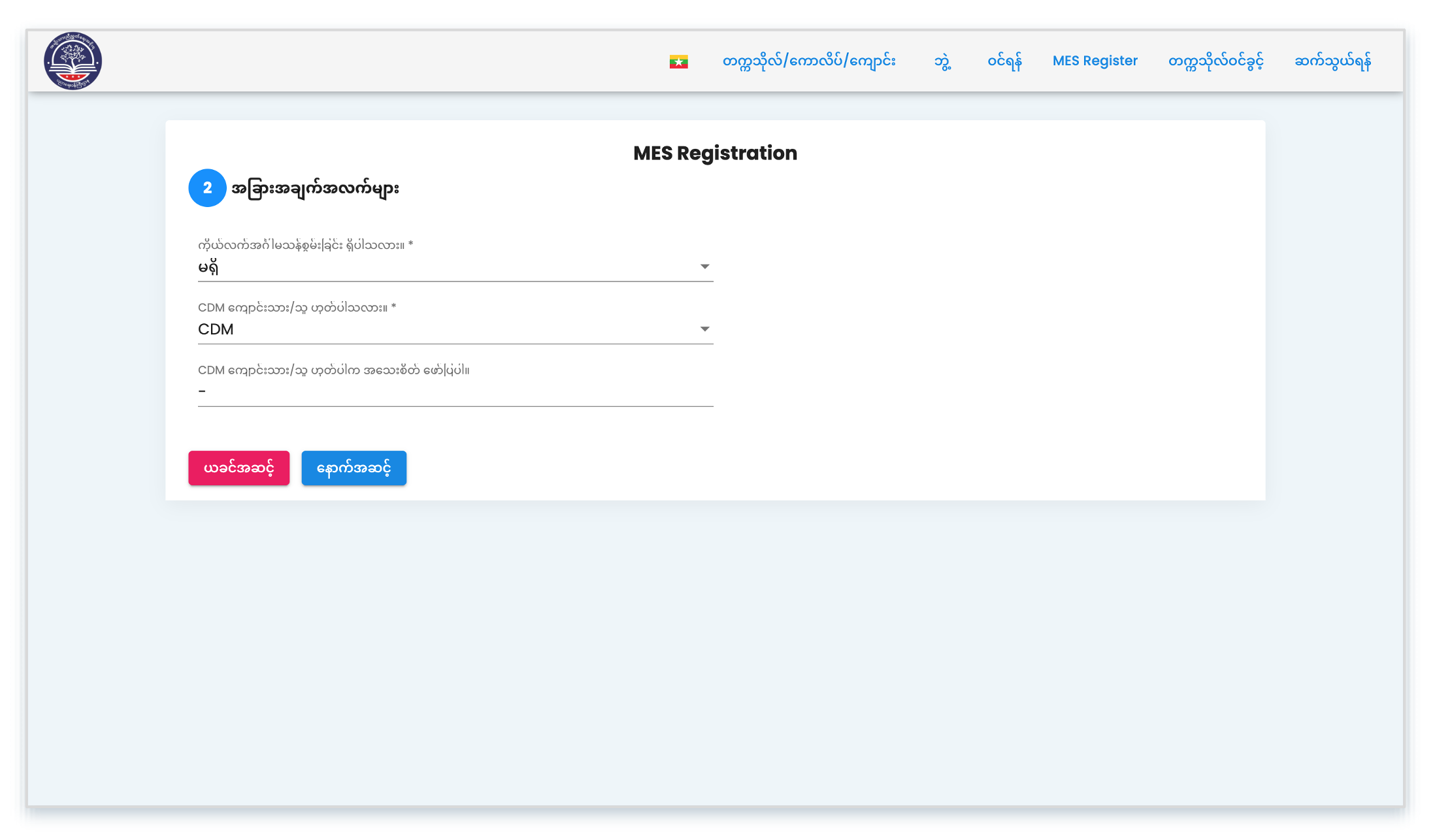
တက္ကသိုလ်အုပ်စုရွေးချယ်ခြင်း
NUCS ကျောင်းသားအဖြစ်သာ စာရင်းသွင်းမည်ဖြစ်သည့်အတွက် ဤနေရာတွင် “အဆင့်မြင့်ပညာရေး” and “ကွန်ပျူတာ” ကို ရွေးပါ။
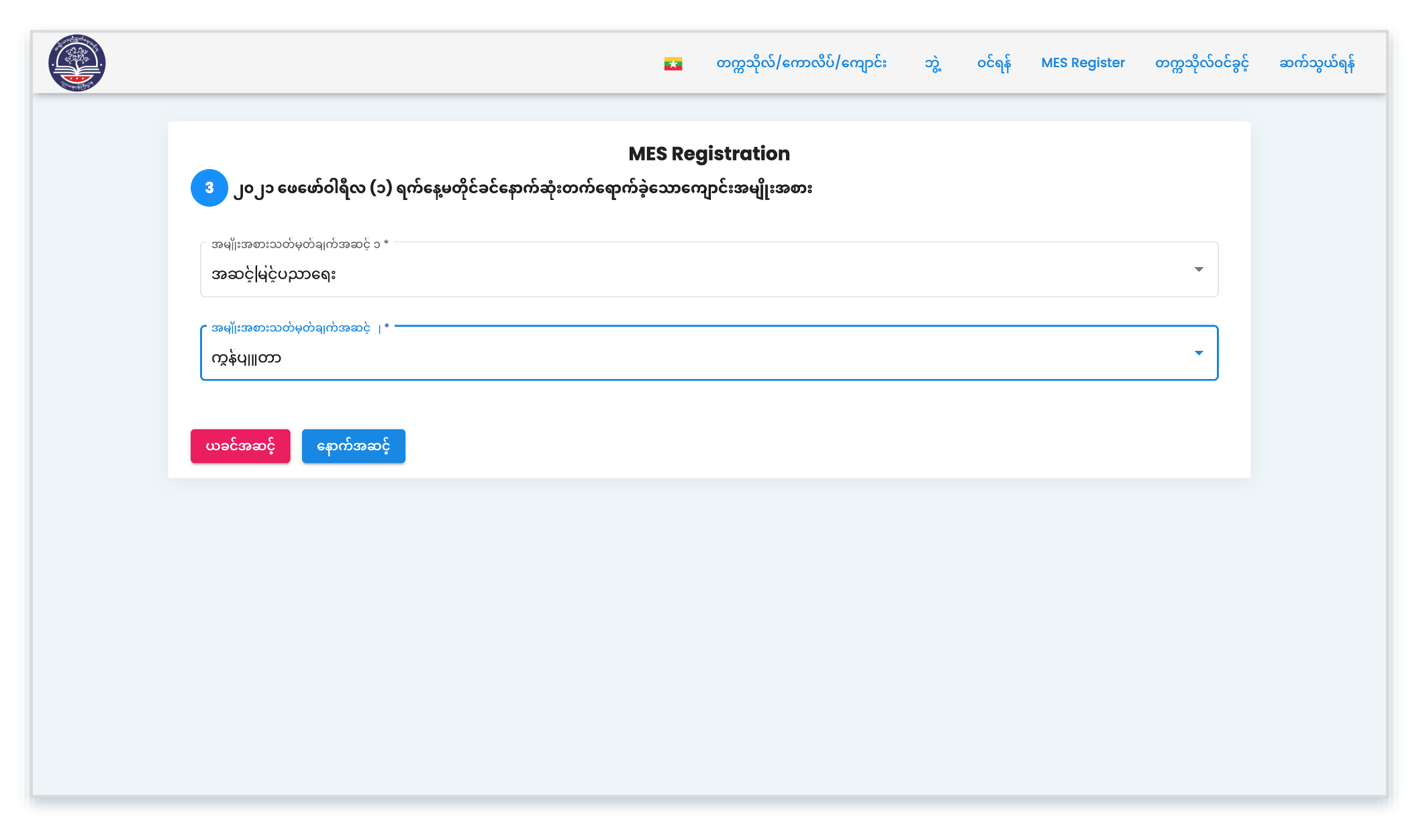
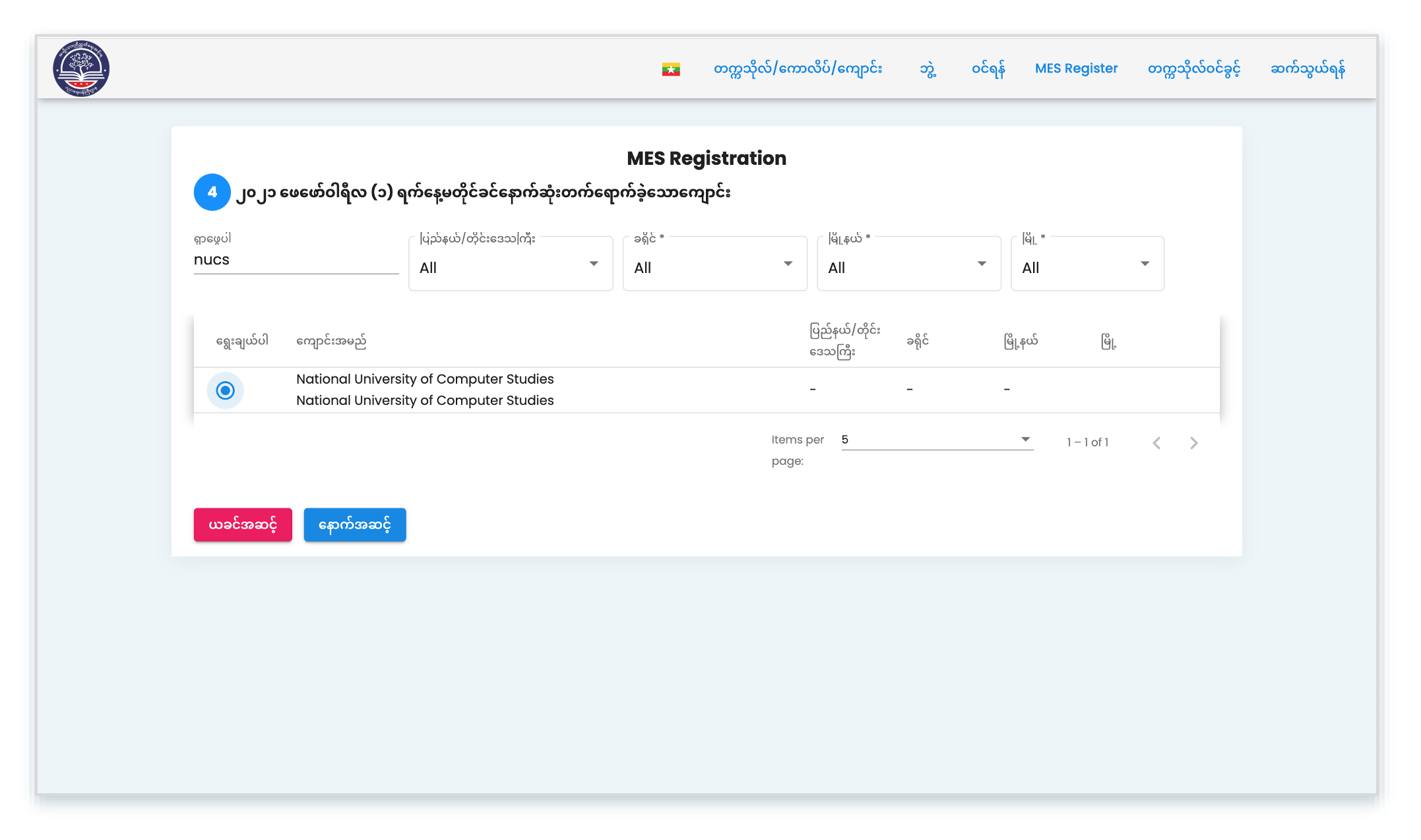
တက်ရောက်မည့်တက္ကသိုလ်ရွေးချယ်ခြင်း
Search Box တွင် NUCS ရိုက်ရှာပြီး ရွေးချယ်ပါ။
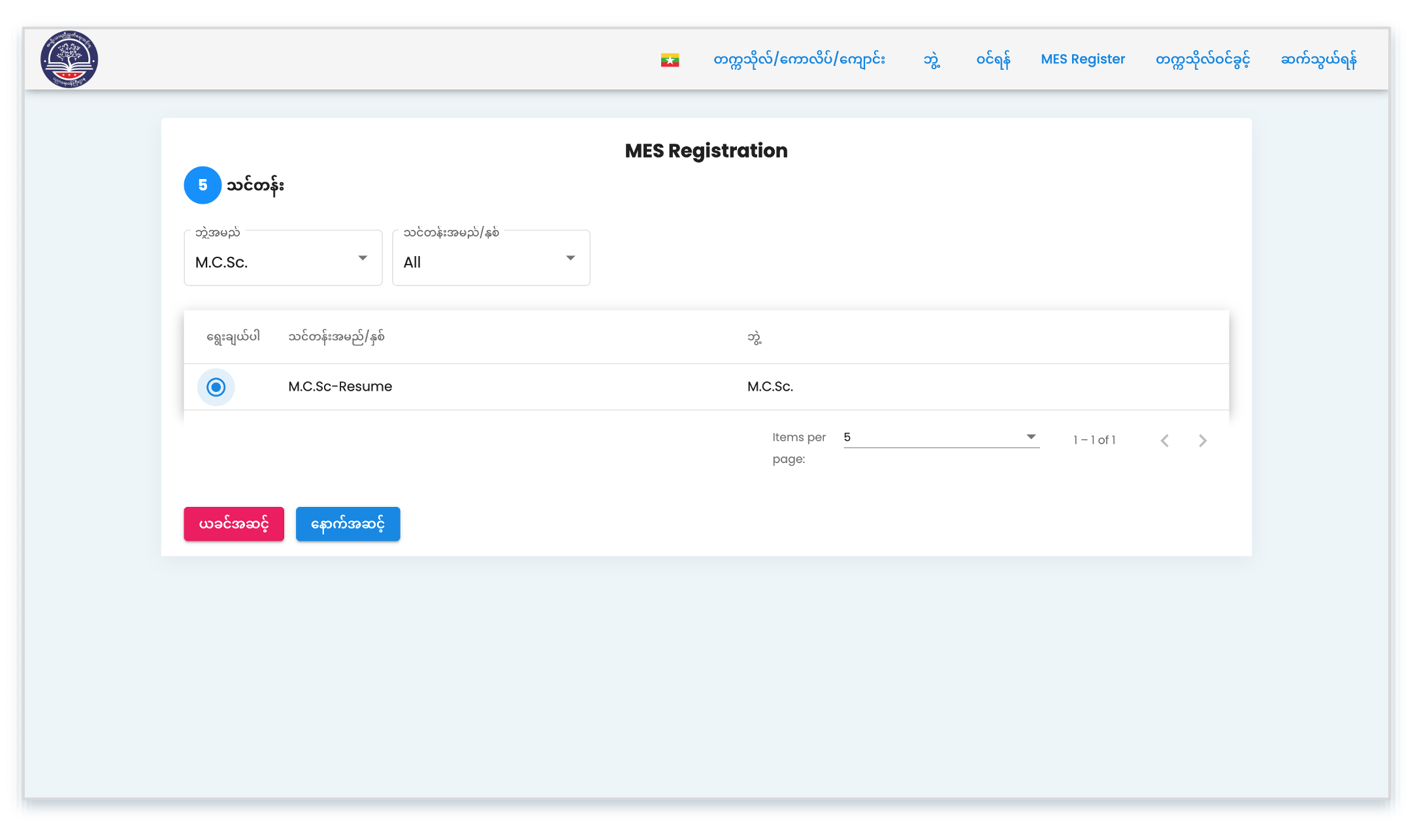
သင်တန်းရွေးချယ်ခြင်း
တက်ရောက်မည့် သင်တန်းရွေးချယ်ပါ။ (M.C.Sc./ M.C.Tech./ Ph.D (IT))
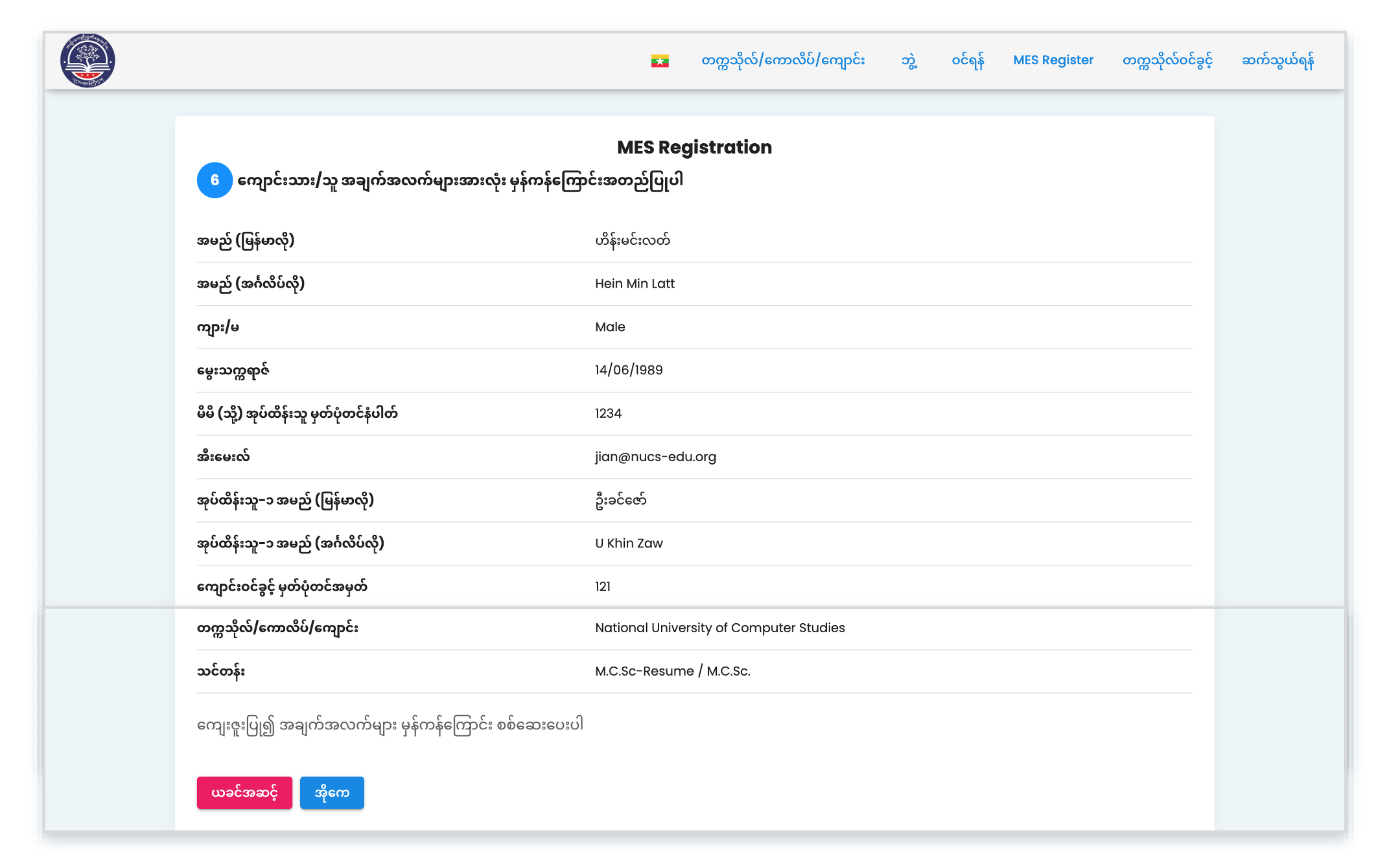
အချက်အလက်စစ်ဆေးခြင်းနှင့် တင်သွင်းခြင်း
အချက်အလက်များကို စစ်ဆေးပြီးနောက် တင်သွင်းရန်အတွက် “အိုကေ”.
MES Registration Notification
Registration အဆင်ပြေကြောင်း နှင့် အီးမေးလ်ထဲသို့ ဆက်လုပ်ရန် လင့်ပို့ထားကြောင်း အသိပေးပါမည်။
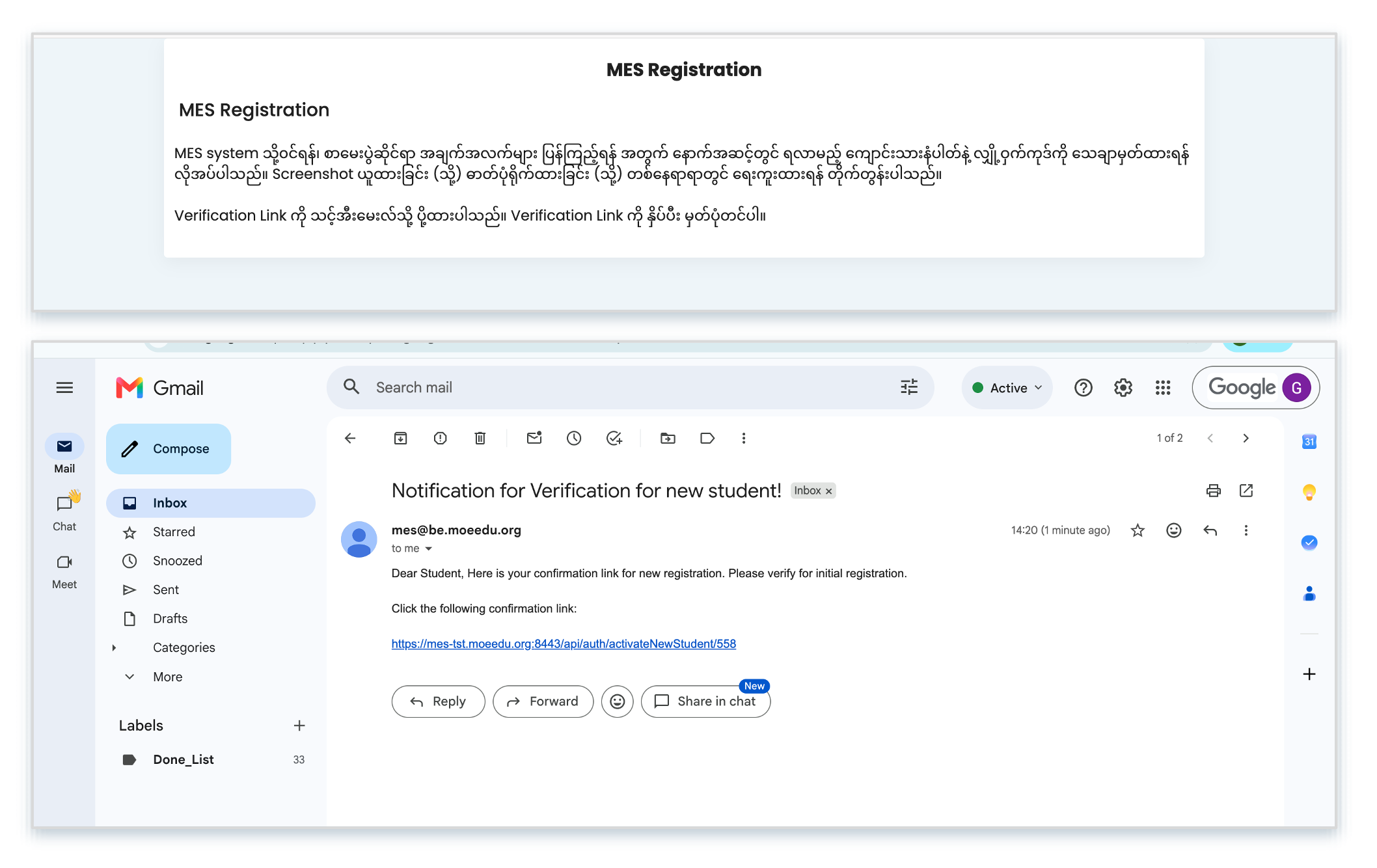
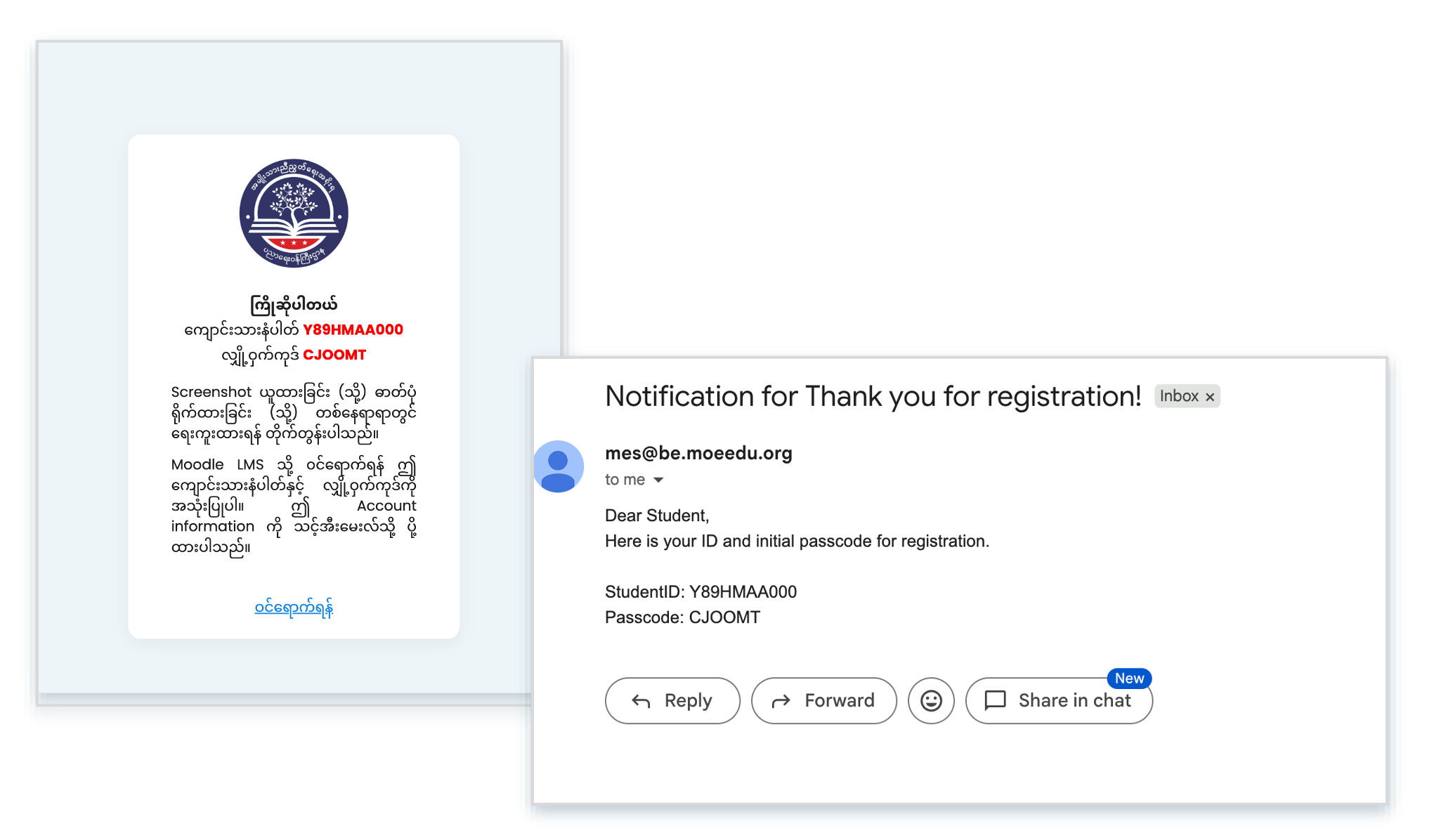
MES ID နှင့် Password ရယူခြင်း
အီးမေးလ်ထဲသို့ ရောက်ရှိလာသောလင့်ကို နှိပ်ပြီး ရရှိ လာသည့် MES-ID နှင့် Password ကို မှတ်ထားပါ။ အီးမေးလ်ထဲသို့လဲ ပေးပို့ပေးထားပါလိမ့်မည်။
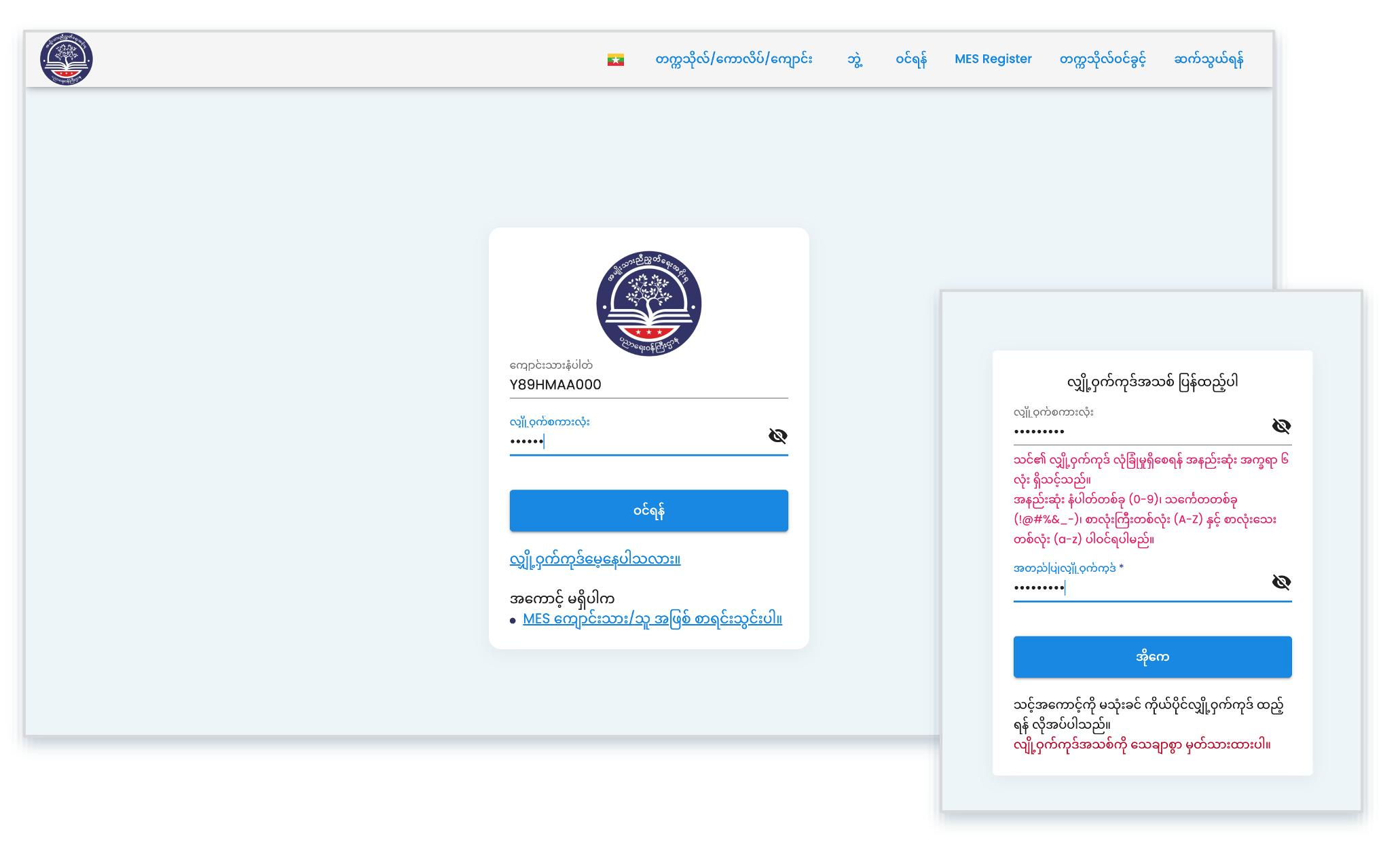
MES သို့ ဝင်ရောက်ခြင်း
ရရှိလာသည့် MES ID နှင့် password များဖြင့် MES သို့ ဝင်ရောက်ပါ။ ပထမဆုံးအကြိမ်ဝင်ရောက်ရာတွင် Password Change ရပါမည်။
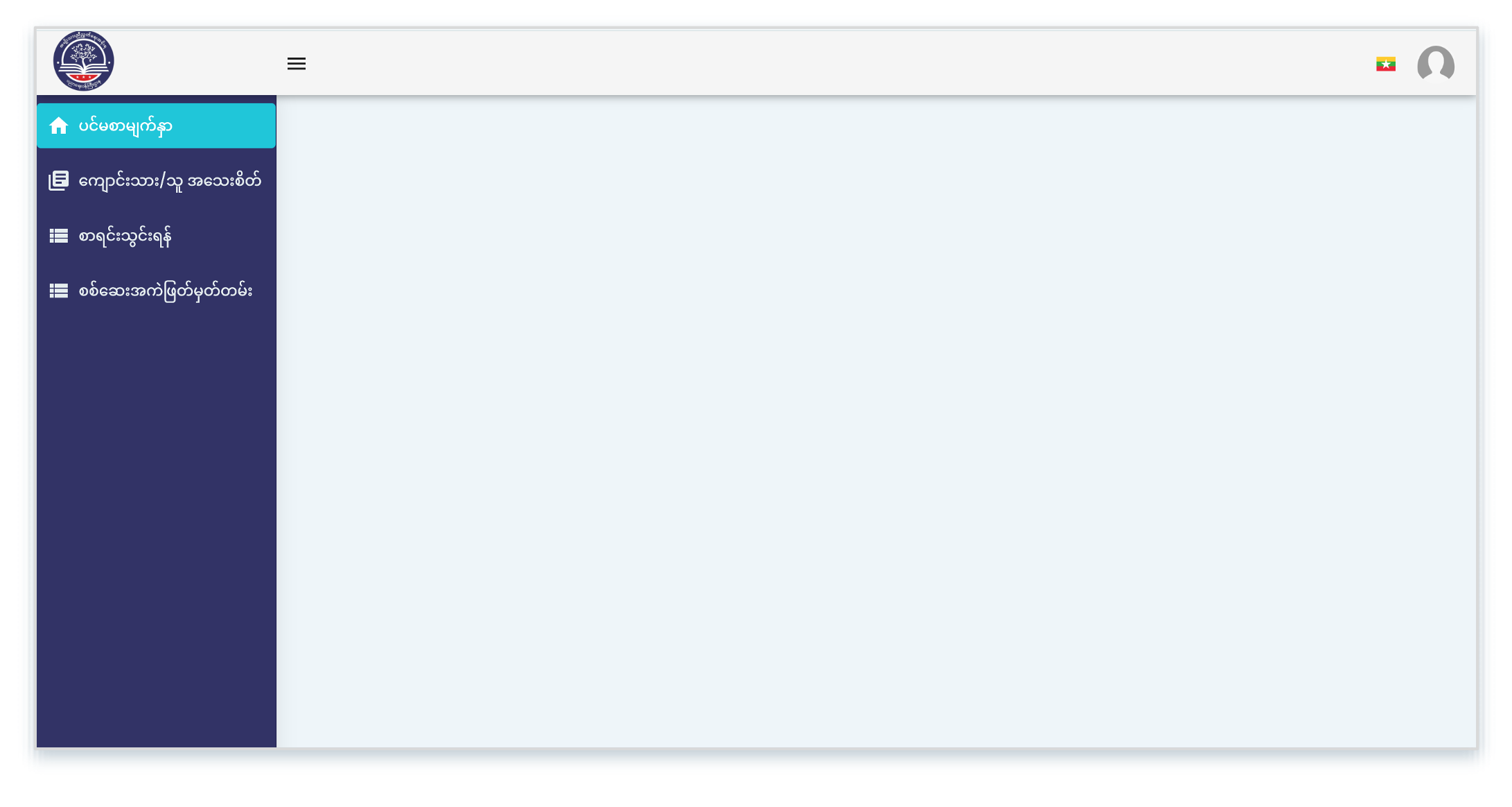
MES ကျောင်းသားအကောင့်ကြည့်ရှုခြင်း
MES ထဲသို့ ဝင်ရောက်ပြီးသည့်အခါ ကျောင်းသားအကောင့်ကို ပုံပါအတိုင်း မြင်ရပါမည်။
၂။ ဘွဲ့လွန်ကျောင်းသားအဖြစ်စာရင်းသွင်းခြင်း
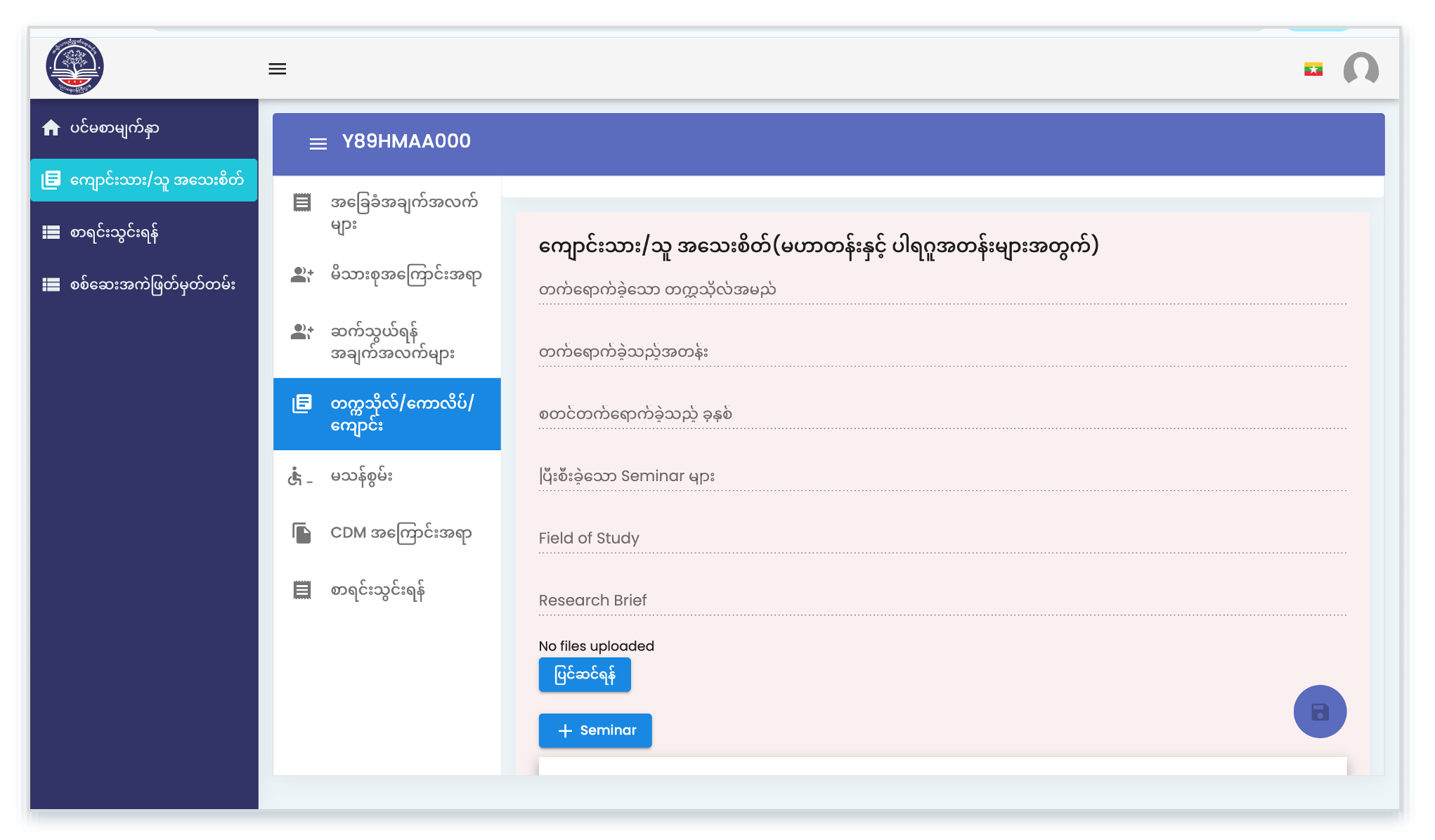
စာရင်းသွင်းမည့်နေရာသို့ ဝင်ရောက်ခြင်း
“ကျောင်းသား/သူအသေးစိတ်” → “တက္ကသိုလ်/ ကောလိပ်/ကျောင်း” ကို ဝင်ရောက်ပြီး အောက်ဘက်သို့ Scroll ဆွဲကြည့်ပါက စာရင်းသွင်းရမည့် နေရာကိုမြင်ရပါမည်။ အချက်အလက်များ ဖြည့်သွင်းရန်အတွက် ‘ပြင်ဆင်ရန်’ ကိုနှိပ်ပါ။
အချက်အလက်များဖြည့်သွင်းခြင်း
သင်တန်းသား/သူ၏ယခင်တက်ရောက်ခဲ့သော အခြေအနေကို ဖြည့်သွင်းပါ။
သင်တန်းအထောက်အထားတွင် ယခင်တက်ရောက်ခဲ့သော သင်တန်းကို စိစစ်နိုင်မည့် အထောက်အထားတခုခု တင်ပြပါ။
လုံးဝမရနိုင်ပါက ကိုယ်တိုင်ခံဝန်ချက် ရေးပြီးတင်ပါ။
CDM ဖြစ်ကြောင်း အထောက်အထားတခုခု တင်ပြပါ။
လုံးဝမရနိုင်ပါက ကိုယ်တိုင်ရေးဖြင့် တင်သွင်းပါ။
စစ်အုပ်စုနှင့် မပတ်သက်ကြောင်း ကိုယ်တိုင်ခံဝန်ချက် တင်သွင်းပါ။
*** လုံခြုံရေးအခြေအနေကြောင့် ဤကန့်သတ်ချက်များ ထည့်သွင်းထားရခြင်း ဖြစ်သည့်အတွက် ယင်းအချက်အလက်များ မတင်ပြပါက ဆက်လက်လုပ်ဆောင်ပေးနိုင်ခြင်း မရှိသေးပါ။
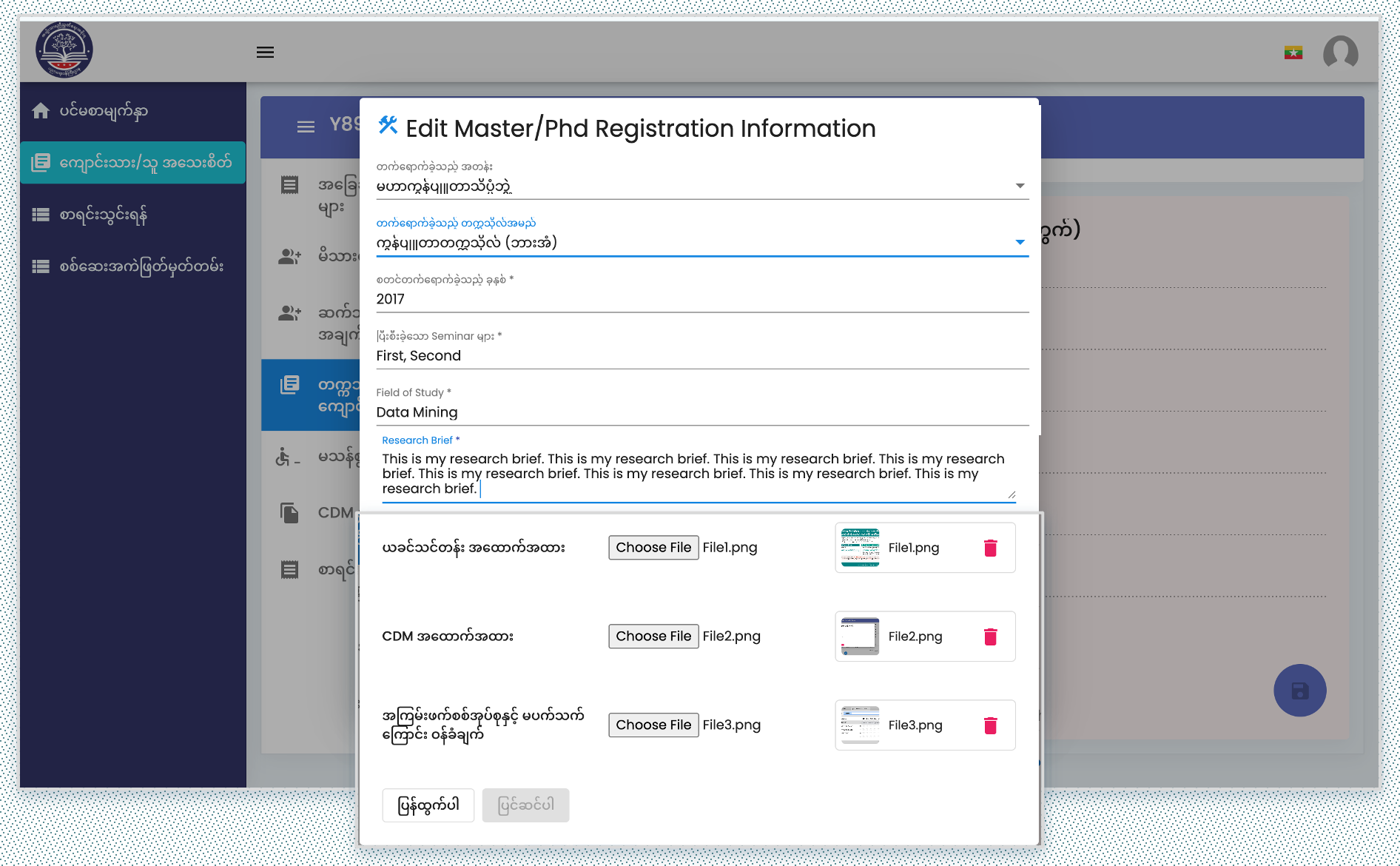
ဖြည့်သွင်းပြီးသည့်အချက်အလက်များ ပြန်ကြည့်ခြင်း
ဖြည့်သွင်းလိုက်သည့် အချက်အလက်များကို ပုံပါအတိုင်း ပြည်လည်ကြည့်ရှုနိုင်ပါသည်။ ဖိုင်များကို လင့်များဖြင့် ပြန်လည်ကြည့်ရှုနိုင်ပါသည်။ ပြင်ဆင်ရန်ရှိပါက ‘ပြင်ဆင်ရန်’ ကို နှိပ်ပြီး ပြင်ဆင်နိုင်ပါသည်။
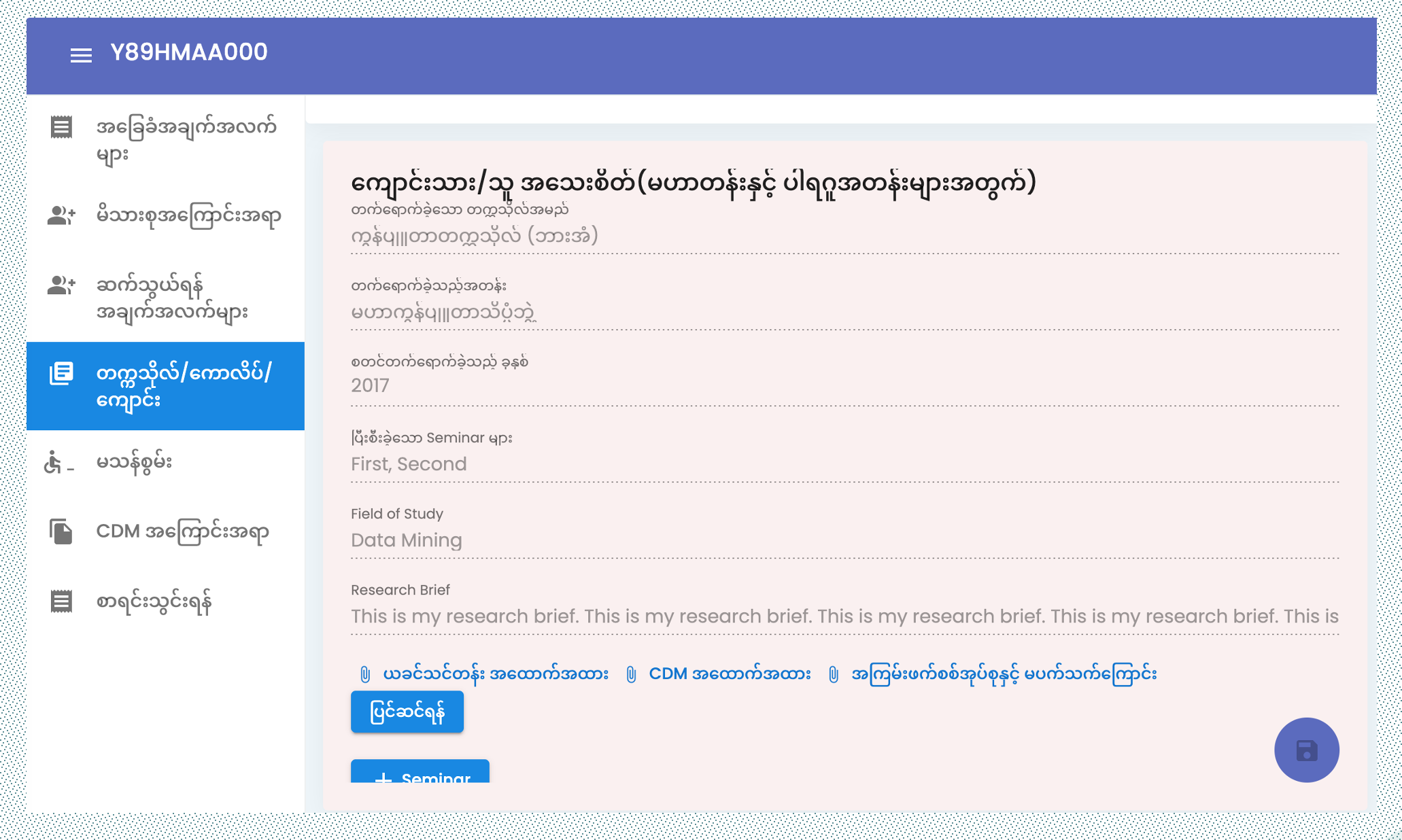
Seminar/Paper နှင့် အခြားဖိုင်များတင်ခြင်း
မိမိပြုလုပ်ခဲ့သည့် Seminarများ၊ ရရှိခဲ့သည့် Paper များနှင့် အခြားသော တင်သွင်းလိုသော ဖိုင်များကို တင်သွင်းရပါမည်။ တင်သွင်းရန် “-“.
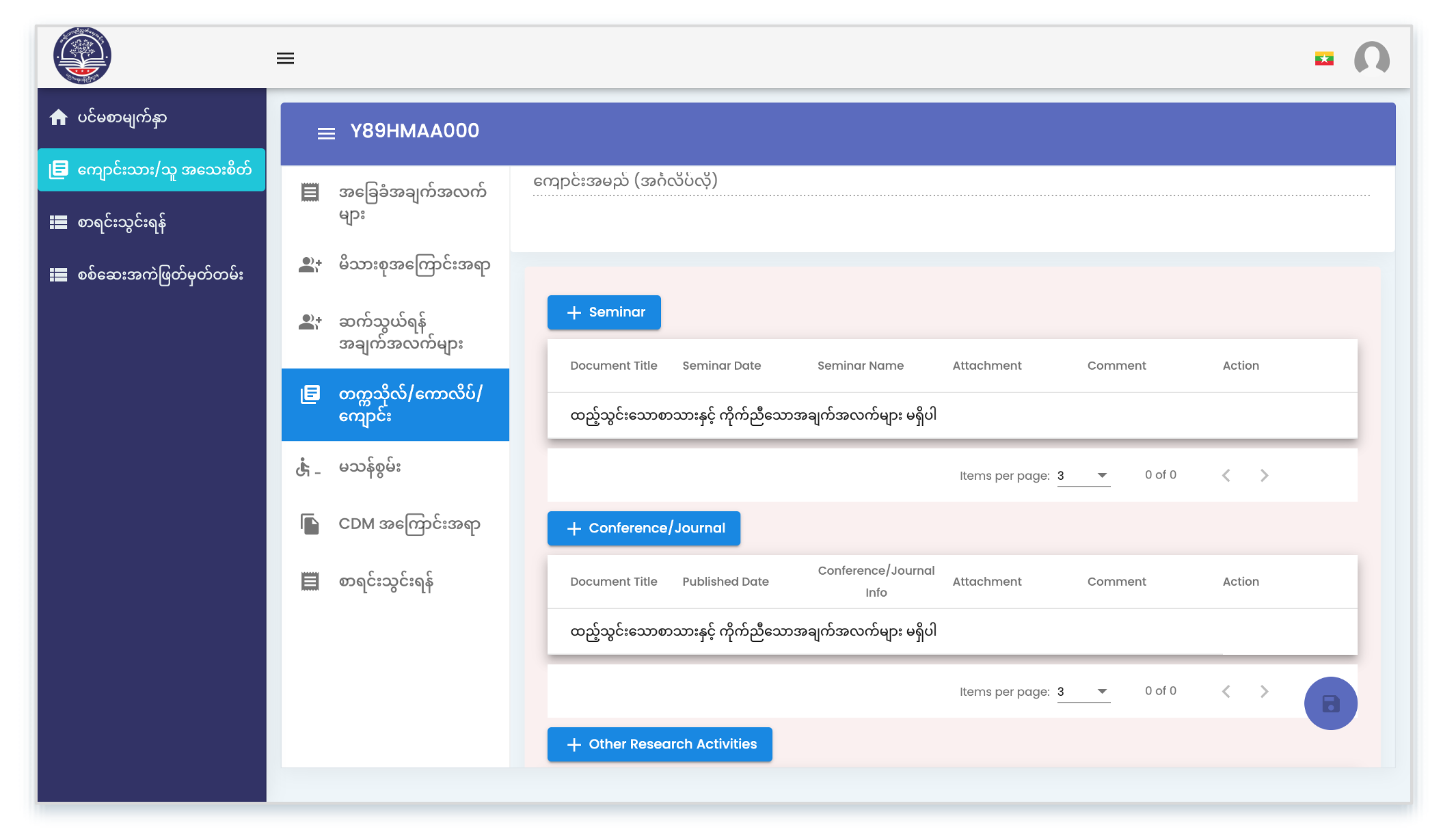
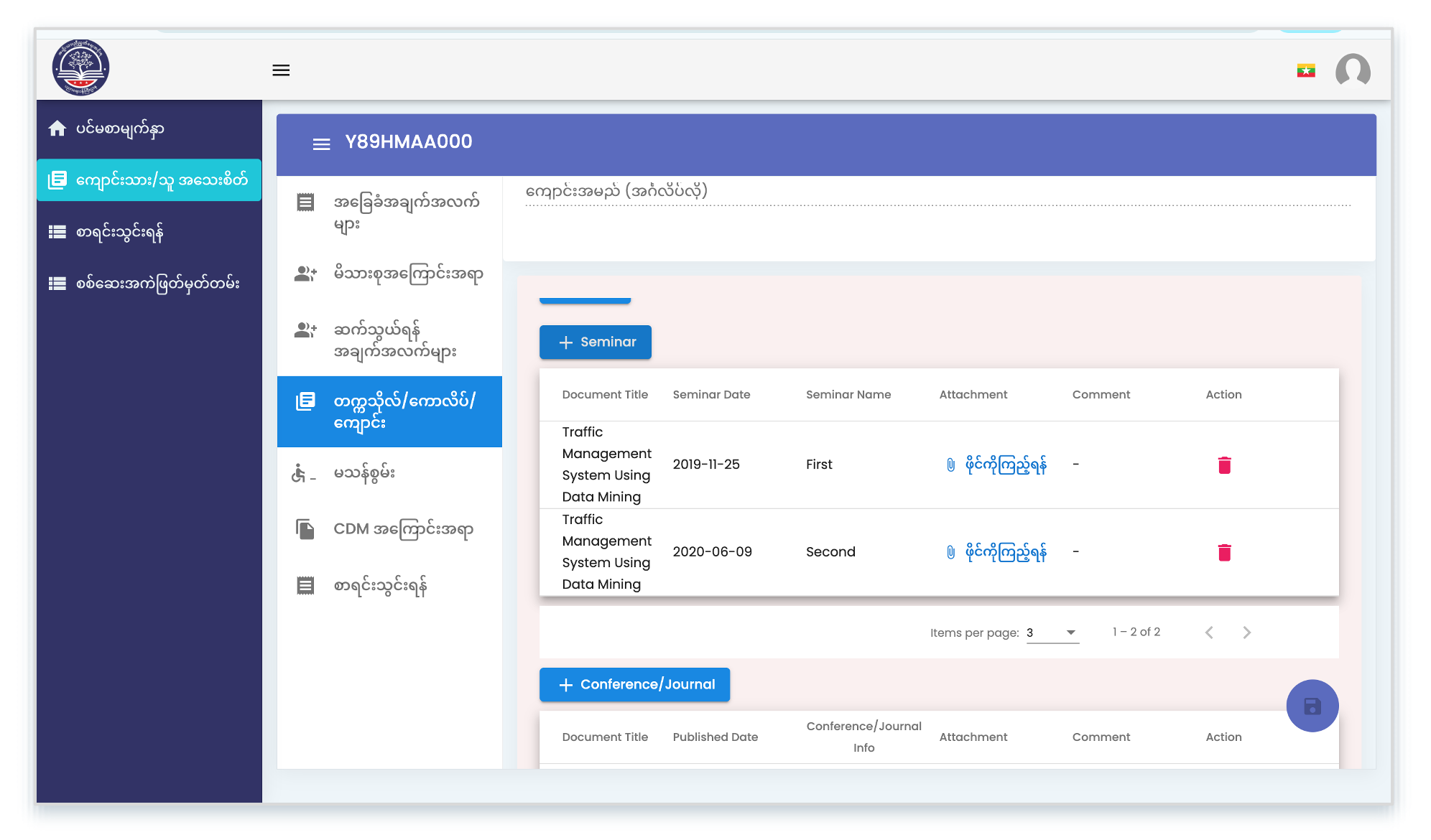
Seminar ဖိုင်များဖြည့်သွင်းခြင်း
ပြီးစီးခဲ့သည့် Seminar နှင့်ပတ်သက်သော အချက်အလက်များ ဖြည့်ပါ။ ရက်စွဲအတိအကျ မမှတ်မိပါက အနီးဆုံးရက်စွဲကိုဖြည့်ပါ။
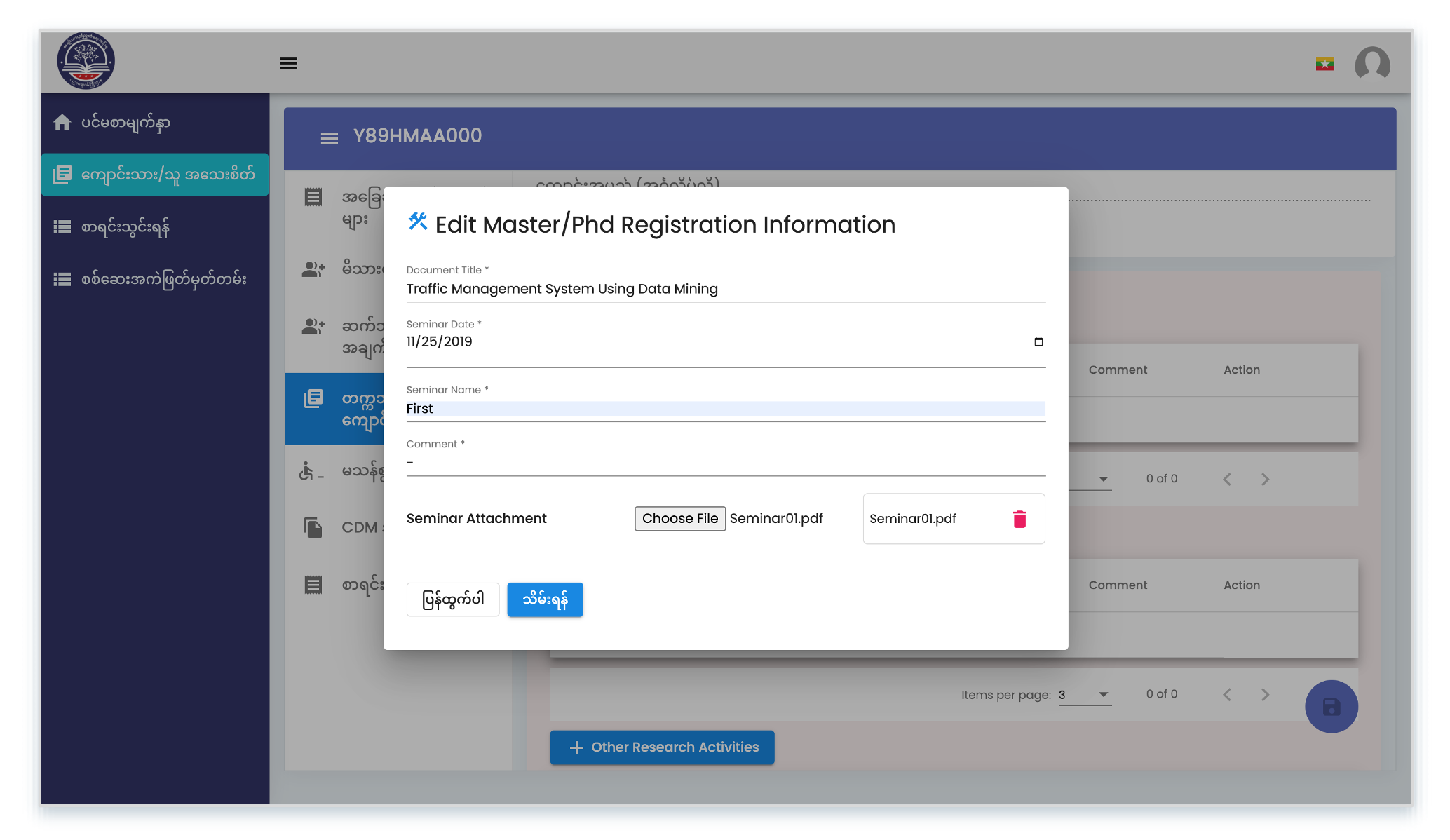
ဖြည့်ပြီးခဲ့သောဖိုင်များ ပြန်ကြည့်ခြင်း
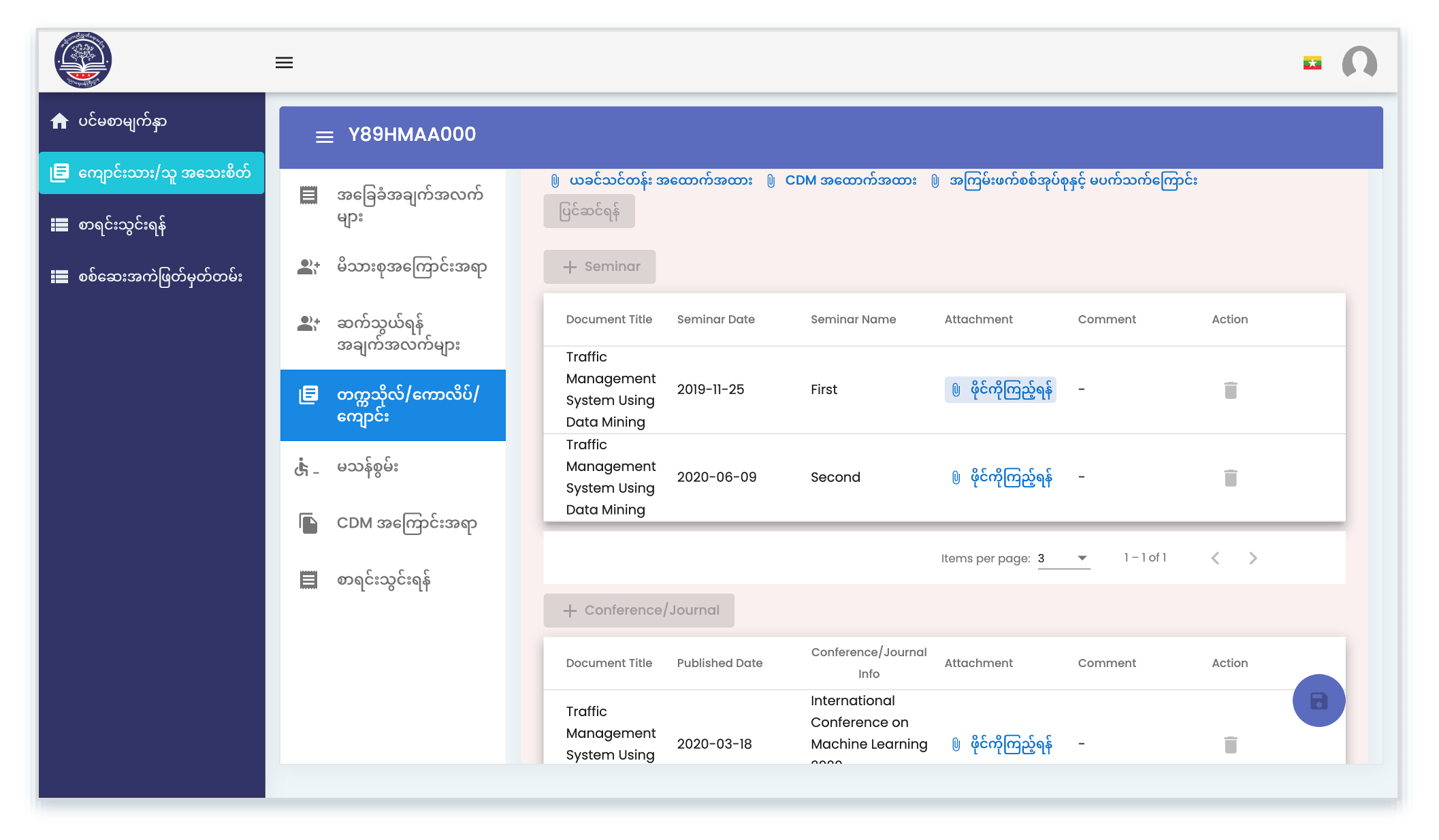
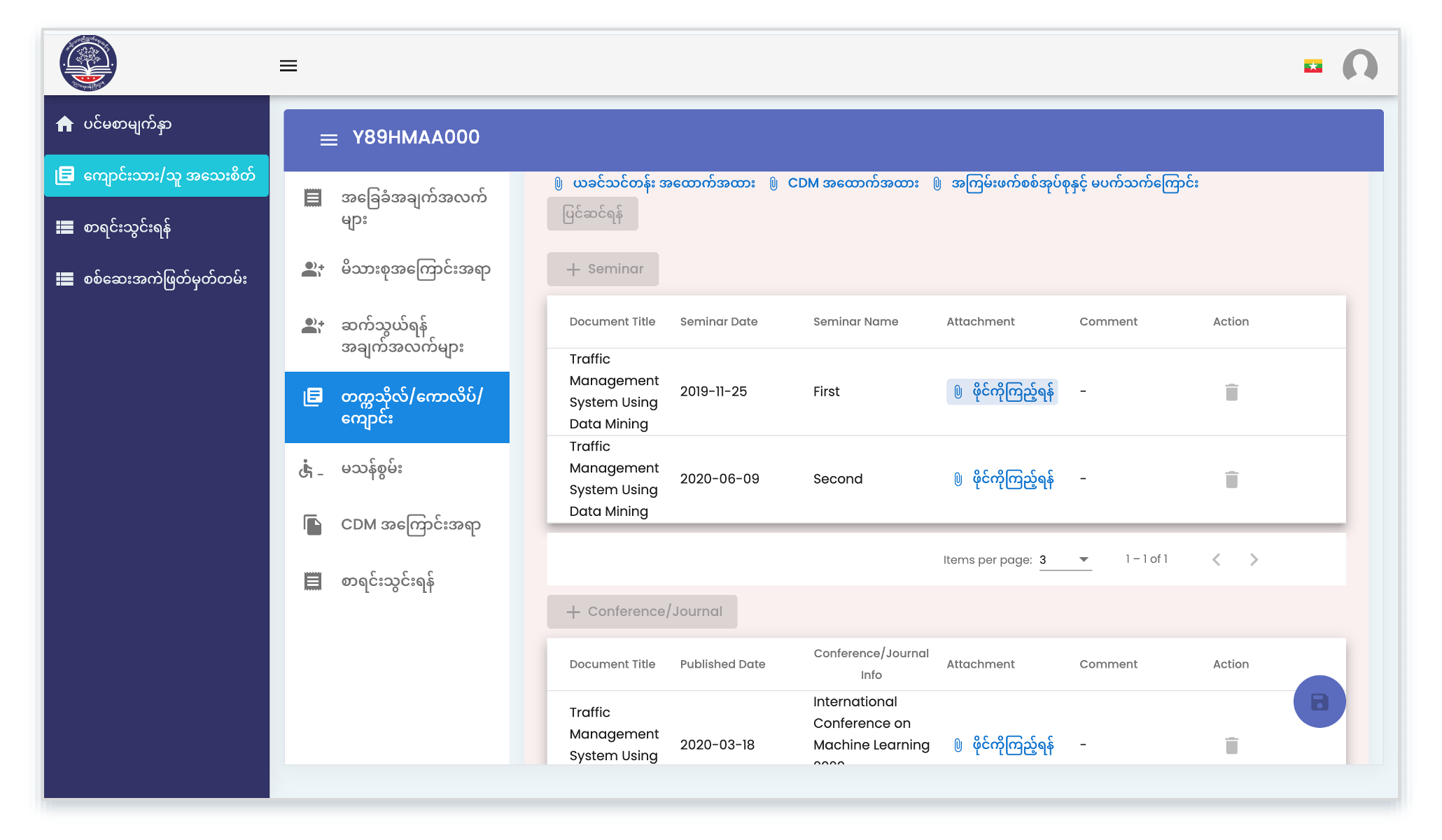
ဖြည့်ခဲ့ပြီးသော ဖိုင်များကို သက်ဆိုင်ရာခေါင်းစဉ်အောက်တွင် ပုံပါအတိုင်း ပြန်ကြည့်နိုင်ပါသည်။ ပြင်ဆင်ခွင့် မပြုသည့်အတွက် မှားတင်မိပါက Delete လုပ်ပြီး အသစ်ပြန်တင်သွင်းပါ။
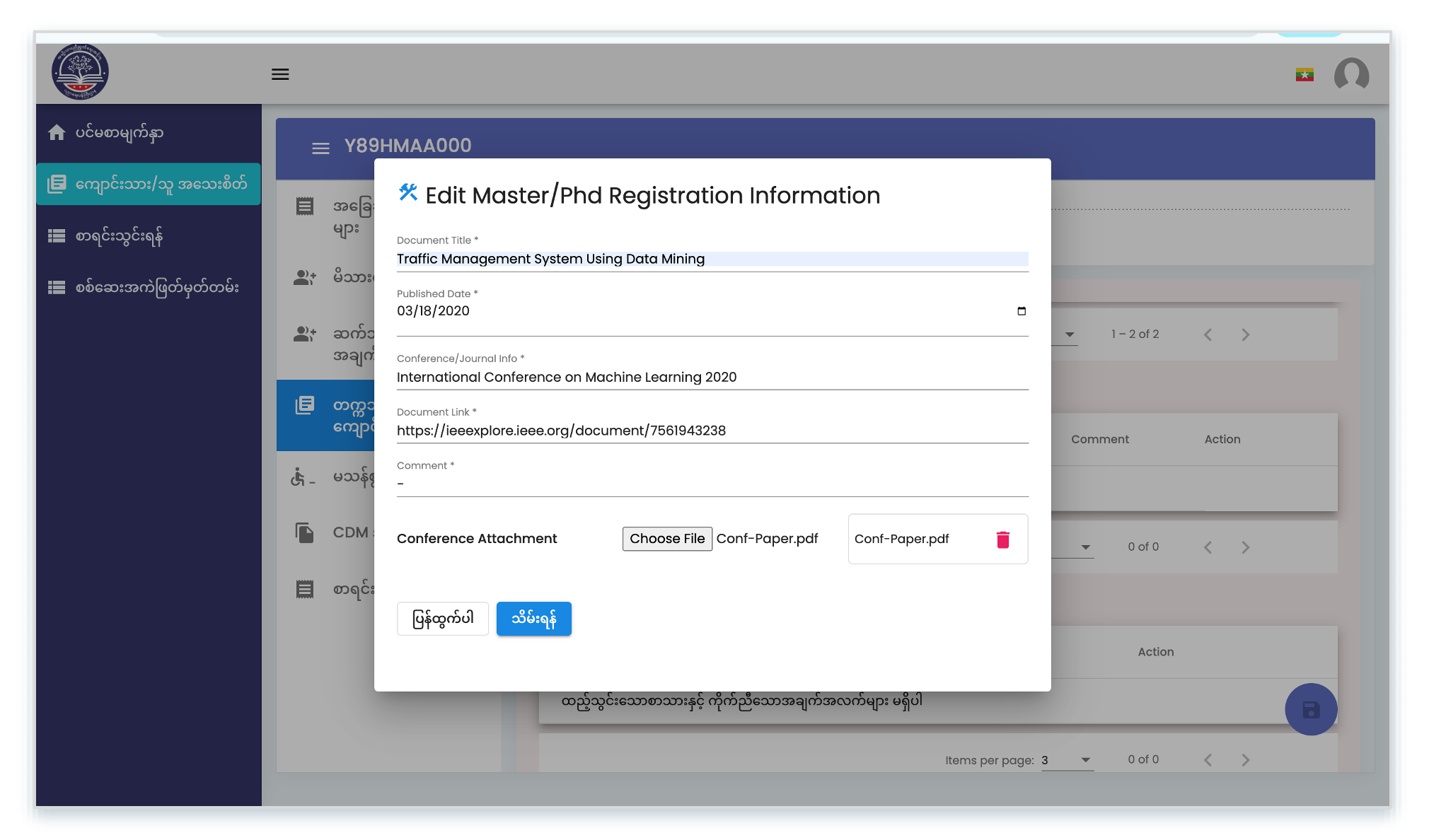
Paper စာတမ်းများတင်သွင်းခြင်း
ရရှိခဲ့ဖူးသော စာတမ်းများ တင်သွင်းရာတွင် စာတမ်းကိုကြည့်ရှုအတည်ပြုနိုင်မည့် လင့်ပါထည့်သွင်းနိုင်ပါသည်။ လင့်မရှိပါက “-“ သာ ဖြည့်ထားခဲ့ပါ။
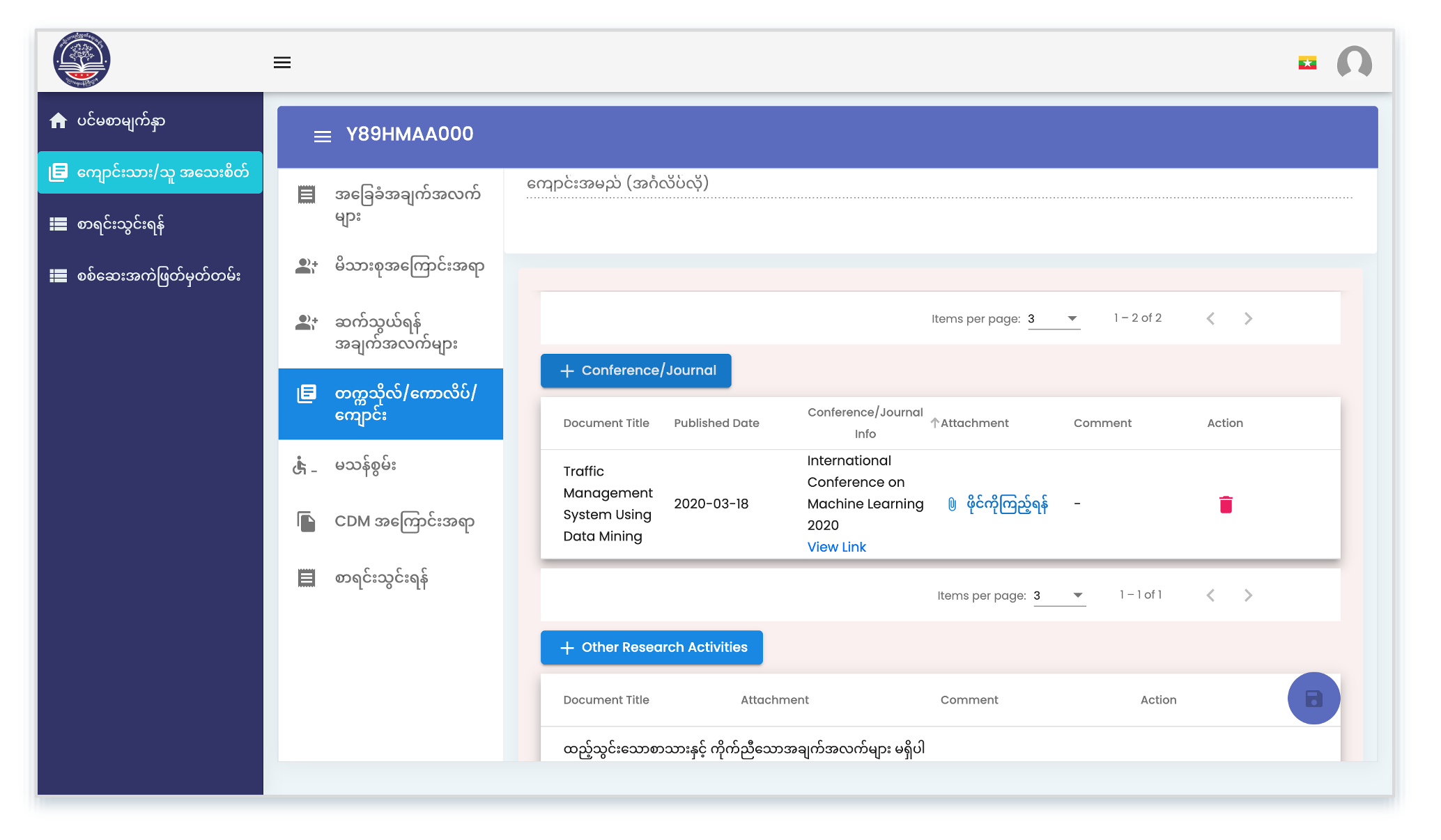
တင်သွင်းထားသည့် စာတမ်းကို ပြန်ကြည့်ခြင်း
တင်သွင်းထားသည့် စာတမ်းကို ပုံပါအတိုင်း ပြန်လည်ကြည့်ရှုနိုင်ပါသည်။ စာတမ်း၏လင့်ကိုလည်း ကြည့်ရှုနိုင်ပါသည်။
အခြားတင်သွင်းလိုသော ဖိုင်များကိုလည်း ယခုနည်းလမ်းအတိုင်း တင်သွင်းနိုင်ပါသည်။
Submit ပြုလုပ်ခြင်း
အချက်အလက်နှင့် ဖိုင်တင်သွင်းမှုများအားလုံး ပြုလုပ်ပြီးပါက တက္ကသိုလ်ဘက်မှ စိစစ်မှု စတင် ပြုလုပ်ရန်အတွက် Submit ကို နှိပ်ပါ။
***Submit မလုပ်ခင်ထိ တက္ကသိုလ်ဘက်သို့ တင်သွင်းရခြင်း မရှိသေးပါ။
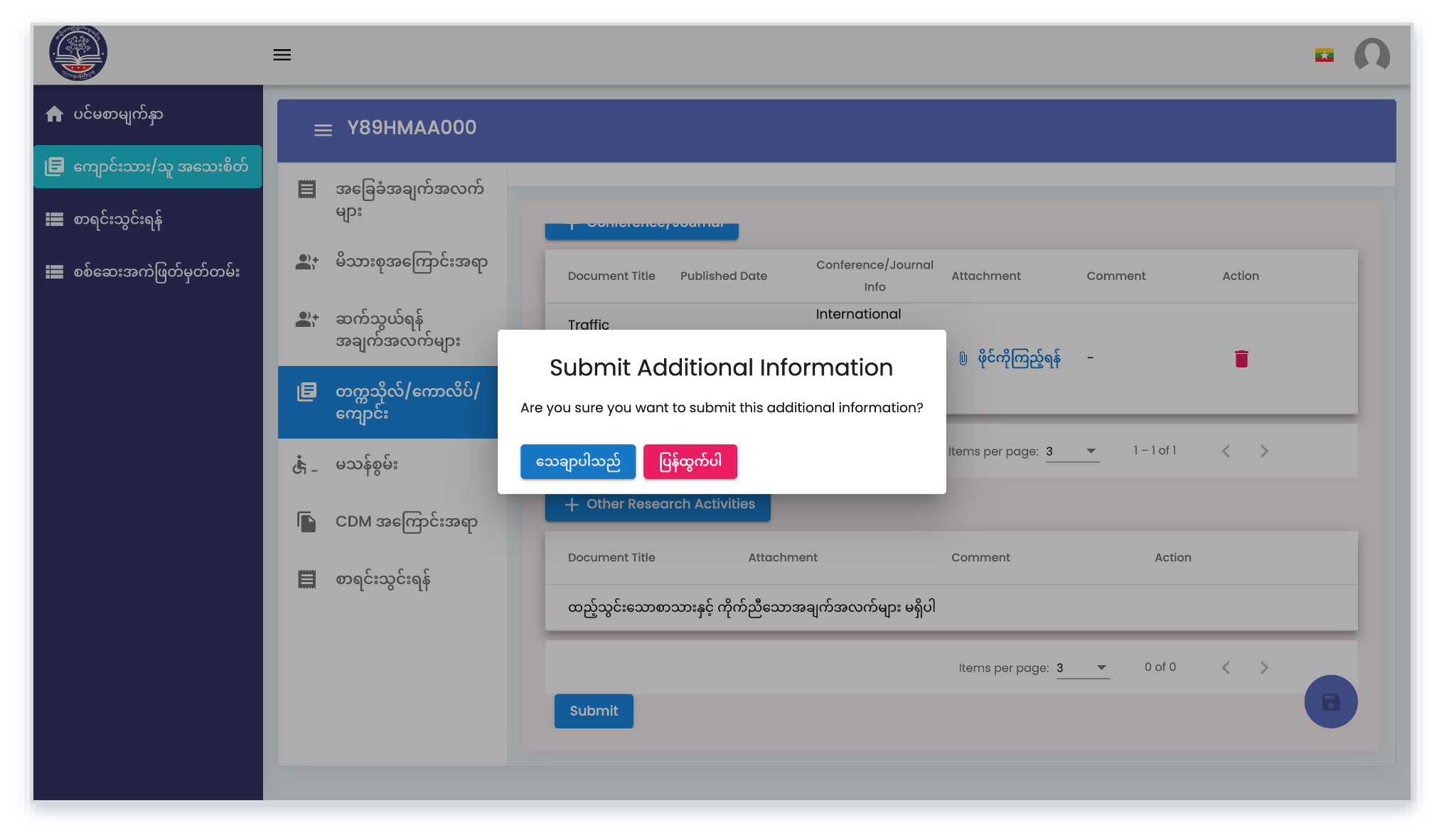
Submit ပြုလုပ်ပြီးစီးခြင်း
Submit ပြုလုပ်ပြီးပါက မည်သည့်ပြုပြင်မှုမှ ပြုလုပ်၍ ရတော့မည် မဟုတ်ပါ။
ထို့ကြောင့် Submit မပြုလုပ်ခင် သေချာအောင် စိစစ်ရန် အရေးကြီးပါသည်။
Submit ပြုလုပ်ပြီးစီးနောက်
တက္ကသိုလ်ဘက်က စိစစ်ခြင်းပြုလုပ်စဉ် လိုအပ်သော အချက်အလက်များ ဖိုင်များရှိပါက အီးမေးလ်ဖြင့် အကြောင်းကြားပါမည်။
ဖိုင်များကိုမူ MES တွင်းမှ ပြန်တင်ရမည်ဖြစ်ပြီး ပြန်တင်ခွင့်ပြုပါလိမ့်မည်။
ပြန်တင်ပြီးပါက Submit ထပ်မံ ပြုလုပ်ရပါမည်။
အထူးသတိပေးချက်
မိမိတို့၏ MES ID, Password များကို အခြားသူများထံ ဖြန့်ဝေခြင်း၊ Group Chat များတွင် ဖြန့်ဝေခြင်းများကို မည်သည့် အကြောင်းကြောင့်ဖြင့်မှ မပြုလုပ်ကြပါရန်နှင့် မေးမြန်းလိုသည်များ ရှိပါက တက္ကသိုလ်၏ တရားဝင် Facebook and Telegram Channel များမှ Admin များထံ တိုက်ရိုက်မေးမြန်း၍သော်လည်းကောင်း studentaffairs@nucs-edu.org သို့ အီးမေးလ်ပေးပို့၍သော်လည်းကောင်း မေးမြန်းနိုင်ပါသည်။